Steam Overlay
The Steam overlay opens on top of the game with Shift+Tab. SteamCore PRO can open it at a page, show web pages and store pages in it, tell you when it opens and closes, and choose where Steam's notifications appear.
Prerequisites
- The game started through Steam, or with Steam running. See Testing Steam Functionality.
- The overlay enabled in the player's Steam settings.
Checking the Overlay
Is Overlay Enabled on Get Steam Utils returns true if the overlay can be opened. The overlay can take a few seconds to start, so it returns false right after the game starts. Check it when the player opens a page, not only at start.
Opening the Overlay
| Node | Opens |
|---|---|
| Activate Game Overlay | A page of the overlay. Dialog is one of friends, community, players, settings, officialgamegroup, stats or achievements. |
| Activate Game Overlay to Web Page | A web page. With Mode set to Modal, the page hides the other overlay windows, and closing it closes the overlay. With Default, it opens next to them and stays open. |
| Activate Game Overlay to Store | An app's store page, for example a DLC. Flag can also add it to the cart, see DLC and Ownership. |
| Activate Game Overlay to User | A page about a player, for example steamid for their profile or friendadd to add them as a friend. |
| Activate Game Overlay Invite Dialog Connect String | The dialog for inviting friends. A friend who accepts starts the game with the Connect String. |
Reacting When the Overlay Opens
Game Overlay Activated fires on Get Steam Friends when the overlay opens and closes. Active is true while it is open, and User Initiated is true when the player opened it with Shift+Tab.
Use it to pause a single player game or to show the mouse cursor. Do not pause an online game, since the other players keep playing.
Notification Position
Set Overlay Notification Position on Get Steam Utils chooses the corner where Steam shows notifications, for example when an achievement is unlocked or a friend comes online. Set Overlay Notification Inset moves them in from that corner, for example to keep them clear of your HUD.
Example
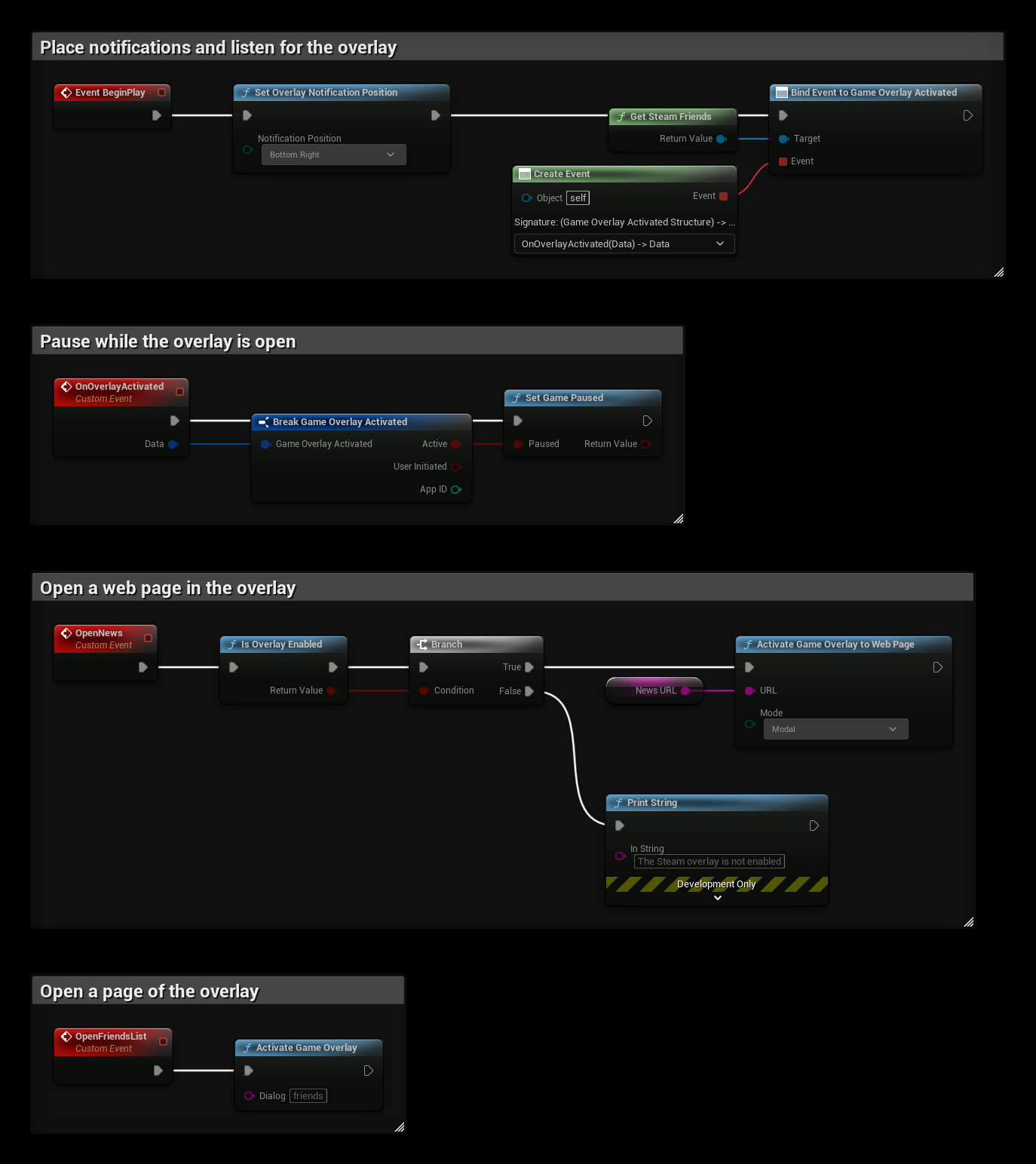
NewsURL is a String variable with the page to open:
- BeginPlay shows notifications in the bottom right corner and binds Game Overlay Activated.
- OnOverlayActivated pauses the game while the overlay is open.
- OpenNews opens
NewsURLin the overlay if the overlay is enabled. - OpenFriendsList opens the friends list.