Lobbies
This guide explains how to create, find and join Steam lobbies with the SteamCore|Matchmaking nodes. A lobby is a group of players that can share data and chat before a game starts. To move the players from a lobby into a game, see Lobby to Game Session.
Prerequisites
- Steam is running and the game is launched as a Standalone Game or a packaged build. Steam is not available in Play In Editor, see Testing Steam Functionality.
- To find each other's lobbies, all players must use the same Steam App ID.
Creating a Lobby
Call Create Lobby with a Lobby Type and Max Members. When On Callback fires with Was Successful, the lobby's Steam ID is in Data. You are the owner of the lobby and are already inside it.
| Lobby Type | Who can find and join it |
|---|---|
| Private | Only players you invite. |
| Friends Only | Your friends and players you invite. |
| Public | Everyone, through Request Lobby List. |
| Invisible | Returned by Request Lobby List, but not shown to friends. |
Lobby Data
The owner can attach key/value strings to the lobby with Set Lobby Data, for example the game mode or map. Every player can read them with Get Lobby Data. The data is used both to show information about a lobby and to filter the search.
Each member can also set their own data with Set Lobby Member Data, for example a selected character. Read it with Get Lobby Member Data.
Finding Lobbies
- Add filters with the Add Request Lobby List ... nodes, for example Add Request Lobby List String Filter to match a lobby data key.
- Call Request Lobby List. When On Callback fires, Lobbies Matching in Data is the number of lobbies found.
- Get each lobby's Steam ID with Get Lobby By Index.
Filters are cleared on each call to Request Lobby List, so add them again before every search. The results only include lobbies that are not full, that are Public or Invisible, and that are joinable. By default only lobbies in the same or nearby regions are returned; use Add Request Lobby List Distance Filter to change that.
Joining and Leaving
- Join Lobby joins a lobby by its Steam ID. Check Was Successful in On Callback.
- Get Num Lobby Members and Get Lobby Member By Index list the players in the lobby. Get Lobby Owner returns the owner.
- Leave Lobby leaves the lobby. When the owner leaves, Steam makes another member the owner.
Lobby Events
Use Get Steam Matchmaking and bind the events you need:
| Event | Fired when |
|---|---|
| Lobby Enter | You have entered a lobby. |
| Lobby Chat Update | A player joined, left or was disconnected. |
| Lobby Data Update | Lobby data or member data changed. |
| Lobby Chat Msg | A chat message was sent in the lobby. |
| Lobby Invite | A friend invited you to a lobby. |
| Lobby Game Created | The owner set the game server with Set Lobby Game Server. |
Example
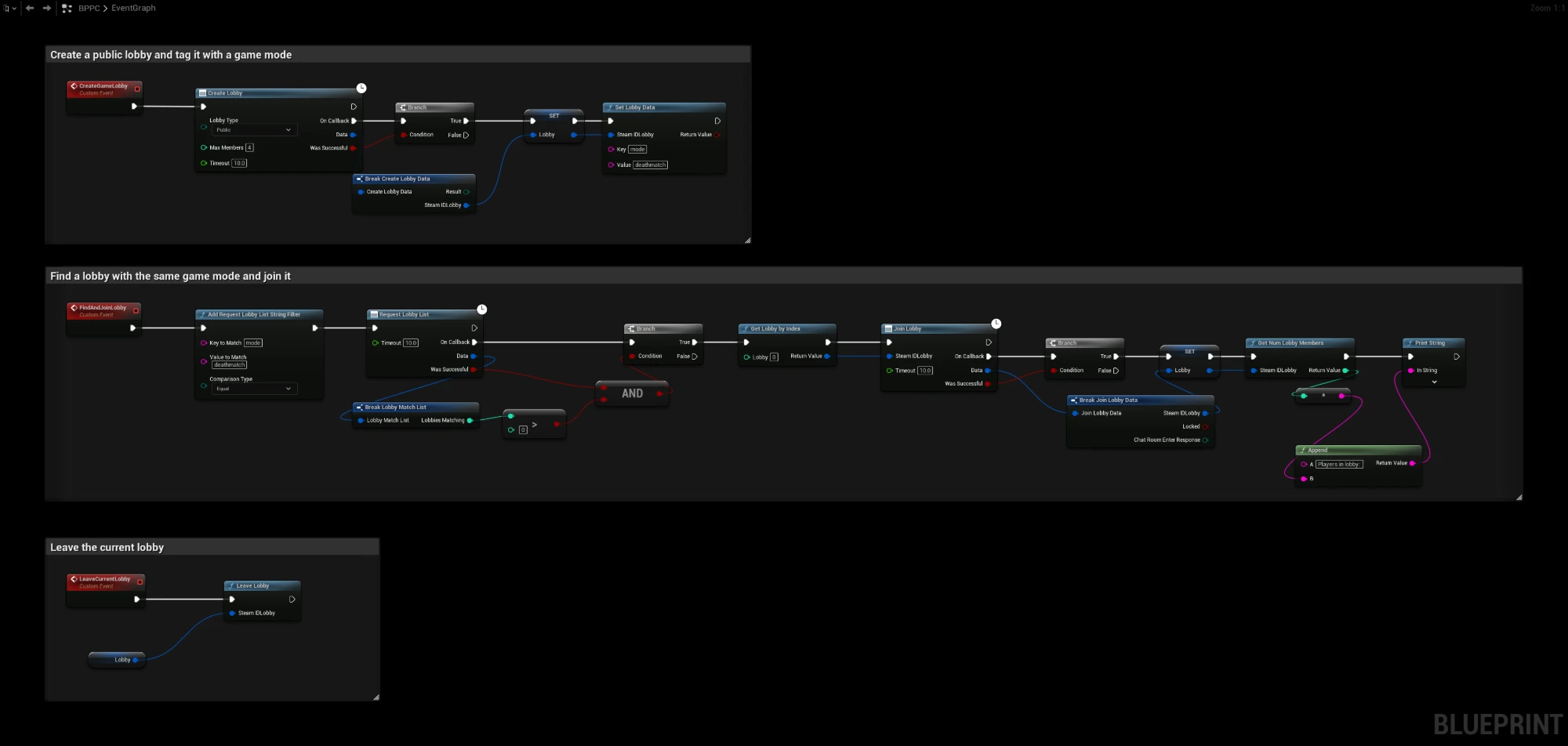
This Blueprint uses a variable Lobby of type Steam ID:
- CreateGameLobby creates a public lobby for 4 players, stores it in Lobby and sets the lobby data
modetodeathmatch. - FindAndJoinLobby searches for lobbies where
modeisdeathmatch, joins the first one, stores it in Lobby and prints the number of players in it. - LeaveCurrentLobby leaves the lobby stored in Lobby.
Troubleshooting
- Request Lobby List finds nothing: make sure the lobby is Public, not full, and that both players use the same App ID. With App ID 480, many other games' lobbies exist, so always use a filter such as a game mode key.
- No lobbies from other regions: add Add Request Lobby List Distance Filter before Request Lobby List.
- Enable Additional Logging to see the plugin's output.