Screenshots
Players can take screenshots with F12 in any Steam game. SteamCore PRO lets your game take a screenshot itself, tag it with where it was taken and who is in it, and add images your game saved, for example from a photo mode, to the player's Steam screenshot library.
Prerequisites
- The game started through Steam, or with Steam running. See Testing Steam Functionality.
Taking a Screenshot
Trigger Screenshot on Get Steam Screenshots takes a screenshot as if the player pressed the screenshot key. Use it for a photo mode button, or to capture a moment such as a win.
Tagging Screenshots
When a screenshot is saved, Screenshot Ready fires on Get Steam Screenshots with its Handle and a Result. If Result is OK, you can tag it:
| Node | Description |
|---|---|
| Set Location | Text shown with the screenshot, for example the map's name. |
| Tag User | A player who is in the screenshot. Friends can find it on that player's profile. |
| Tag Published File | A Workshop item in the screenshot, for example a custom map. |
Adding Your Own Images
Add Screenshot to Library adds a JPG, PNG or TGA file the game saved to the player's library. Pass the full path of the file and its Width and Height in pixels. Leave Thumbnail Filename empty and Steam makes the thumbnail. It returns a handle you can tag, and Screenshot Ready fires as well.
Write Screenshot does the same from raw RGB pixels instead of a file.
Taking Over the Screenshot Key
By default Steam captures the screen when the player presses the screenshot key. Call Hook Screenshots with Hook checked to handle it yourself, for example to hide the HUD first. Steam then fires Screenshot Requested instead of taking the screenshot, and your game must save an image and call Add Screenshot to Library or Write Screenshot. Is Screenshots Hooked returns whether it is hooked.
Example
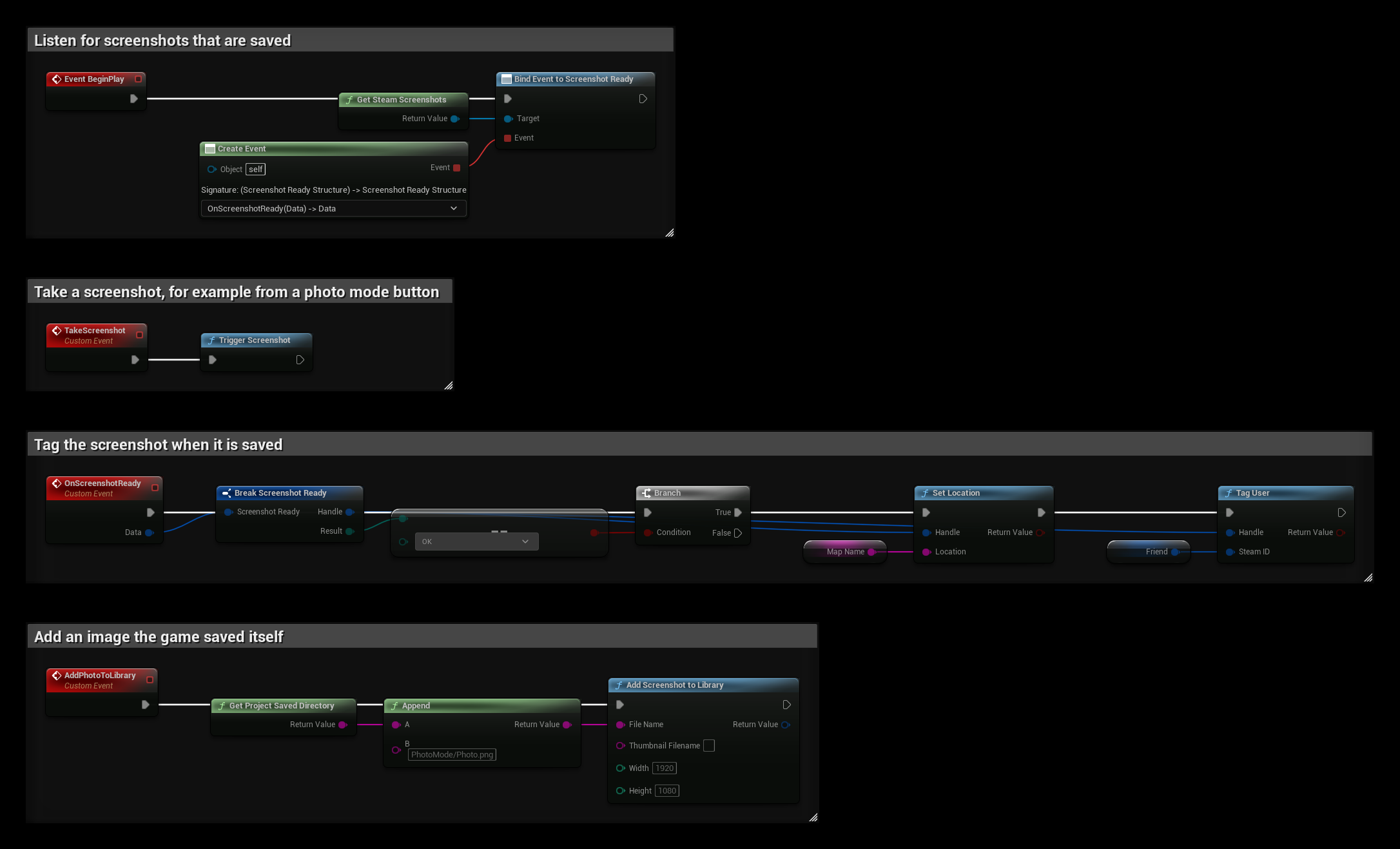
MapName is a String variable and Friend is a Steam ID variable:
- BeginPlay binds Screenshot Ready.
- TakeScreenshot takes a screenshot.
- OnScreenshotReady sets the location to
MapNameand tagsFriendwhen a screenshot is saved. - AddPhotoToLibrary adds
Saved/PhotoMode/Photo.png, an image the game saved itself, to the library.