Microtransactions
This guide explains how to implement microtransactions in your Unreal Engine game using the SteamCore::Web plugin, which is required to enable this functionality. Players can purchase in-game items, such as weapons or cosmetics, through Steam's payment system.
The SteamCore::Web plugin is a separate purchase required to use microtransaction functionality. Ensure you have acquired and installed it from eelDev before proceeding.
Prerequisites
- SteamCore::Web plugin installed in your Unreal Engine project.
- A valid Steam App ID and Web API Key from Valve (see Steamworks Web API Documentation).
- Steamworks Inventory Service enabled for your application.
- Configured item definitions in Steamworks for purchasable items.
Configuring Plugin Settings
To enable microtransactions, configure the SteamCore::Web plugin settings in Unreal Engine.
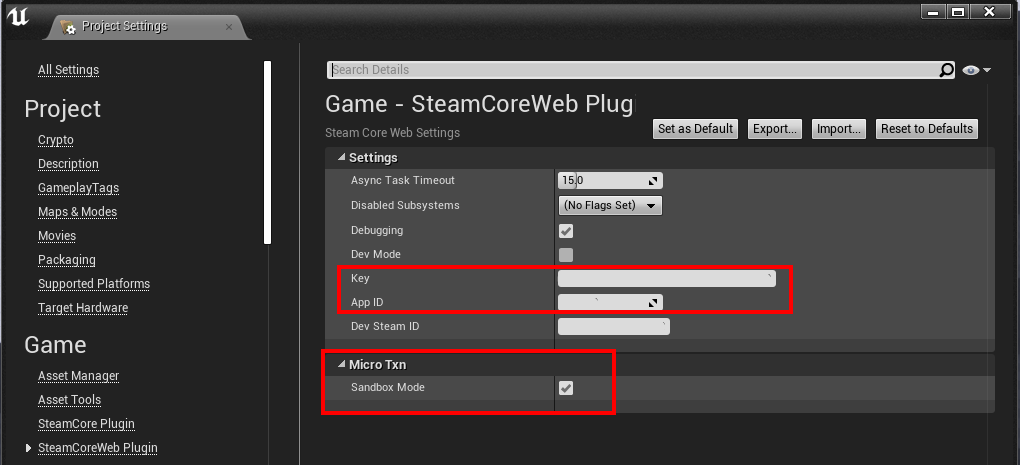
- Open Project Settings > SteamCore::Web.
- Set your Web API Key obtained from Valve.
- Enable Sandbox Mode for the MicroTXN Interface to test transactions without real payments.
Setting Up Steamworks Inventory Service
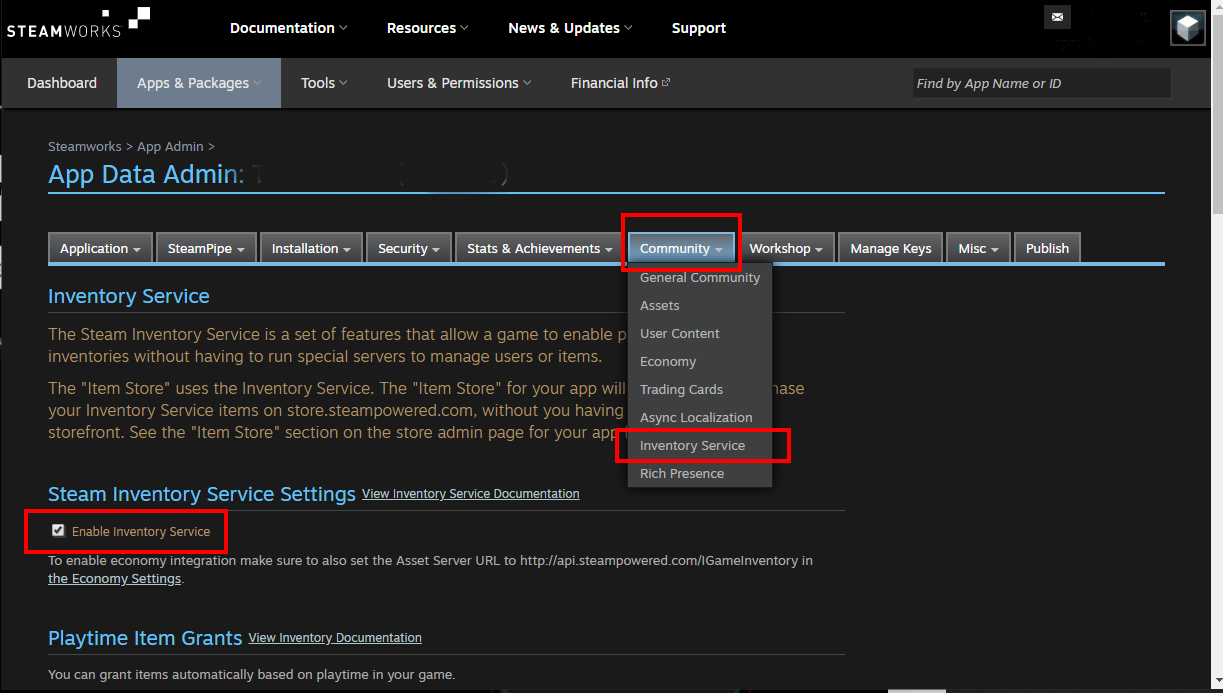
Enable the Inventory Service in your Steamworks application settings to support microtransactions.
- Navigate to Steamworks Settings > Community > Inventory Service.
- Check Enable Inventory Service.
Defining Purchasable Items
Define the items players can purchase in your game using the Steamworks Inventory Service schema. See the Steamworks Inventory Schema Documentation for details.
Example Item Definition
Create a JSON schema for your items, specifying details like itemdefid, type, price, and more. Below is an example defining a "Drop Generator," "Hat Decoration," and "Red Hat."
{
  "appid": 480,
  "items": [
    {
      "itemdefid": 10,
      "type": "playtimegenerator",
      "bundle": "100x100;101x50;102x25;103x2;110x20;111x20;120x5;121x3",
      "name": "Drop Generator",
      "name_color": "7D6D00",
      "background_color": "3C352E",
      "item_slot": "generator",
      "item_quality": 0,
      "icon_url": "http://cdn.beta.steampowered.com/apps/440/icons/c_fireaxe_pyro_xmas_large.fa878752e1aa09a721a03042a234063b6c929278.png",
      "icon_url_large": "http://cdn.beta.steampowered.com/apps/440/icons/c_fireaxe_pyro_xmas_large.fa878752e1aa09a721a03042a234063b6c929278.png",
      "tradable": false,
      "marketable": false
    },
    {
      "itemdefid": 100,
      "type": "item",
      "name": "Hat Decoration",
      "description": "Hat decoration description",
      "price": "1;USD99",
      "name_color": "7D6D00",
      "background_color": "3C352E",
      "item_slot": "decoration",
      "item_quality": 0,
      "icon_url": "http://cdn.beta.steampowered.com/apps/440/icons/c_fireaxe_pyro_xmas_large.fa878752e1aa09a721a03042a234063b6c929278.png",
      "icon_url_large": "http://cdn.beta.steampowered.com/apps/440/icons/c_fireaxe_pyro_xmas_large.fa878752e1aa09a721a03042a234063b6c929278.png",
      "tradable": true,
      "marketable": true
    },
    {
      "itemdefid": 200,
      "type": "item",
      "price": "1;VLV100",
      "name_english": "Red Hat",
      "name_german": "Roter Hut",
      "description_english": "Red Hat",
      "description_german": "Roter Hut",
      "store_tags": "hat;featured",
      "icon_url": "http://cdn.beta.steampowered.com/apps/440/icons/c_fireaxe_pyro_xmas_large.fa878752e1aa09a721a03042a234063b6c929278.png",
      "icon_url_large": "http://cdn.beta.steampowered.com/apps/440/icons/c_fireaxe_pyro_xmas_large.fa878752e1aa09a721a03042a234063b6c929278.png",
      "tradable": true,
      "marketable": true
    }
  ]
}
Initiating a Transaction
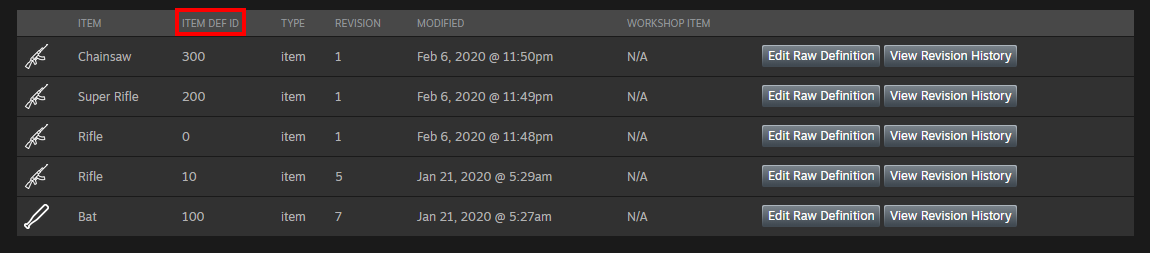
To start a purchase, use the Init Txn node to create a transaction for specific items. The example at the bottom of this page starts a purchase of a "Rifle" (ItemDefID: 10) and a "Bat" (ItemDefID: 100).
The example uses the item definitions from the Example Project, not the JSON schema above. Use the itemdefid values from your own schema, and only items that have a price set can be purchased (for example, the playtimegenerator item in the schema above cannot be bought).
Steps
- Add the Init Txn node to your game logic (e.g., in a UI Blueprint triggered by a "Buy" button).
- Pass a new order ID from Make Transaction ID, the player's Steam ID from Get SteamId as String, and your key and App ID from Get Project Key and Get Project App ID.
- For each item, add its
ItemDefID, quantity, amount (in cents) and description to the arrays, in the same order. - When the node calls back, look for
errordescin Data with Find Json String. If it is not there, Steam shows the purchase to the player in the Steam Overlay.
Demo Video
Watch a short demo of purchasing a "Bat" item. For a complete example, download the Example Project from eelDev.
Finalizing a Transaction
After the player confirms the purchase via the Steam Overlay, finalize the transaction to complete the process and grant the items to the player. Use the Finalize Txn node provided by SteamCore::Web, or implement custom logic.
Steps
- Use Get Steam User and bind Micro Txn Authorization Response to detect when the player authorizes or denies the transaction.
- If Authorized is true, call Finalize Txn with the Order ID and App ID from the event.
- Grant the purchased items to the player (e.g., update inventory or unlock content).
- Handle denial cases by informing the player (e.g., via a UI message).
Example
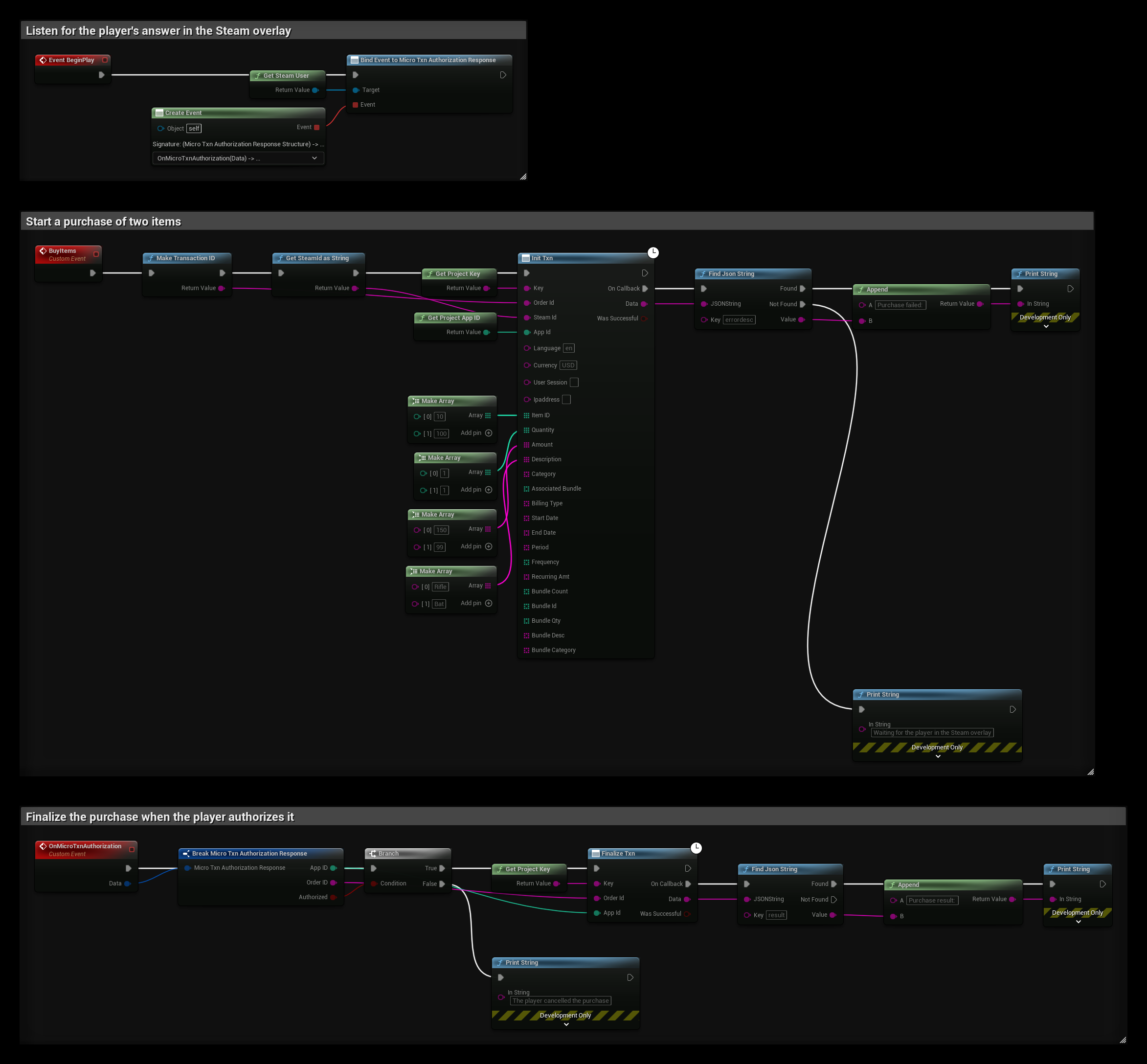
This Blueprint uses nodes from both SteamCore PRO and SteamCore::Web:
- BeginPlay binds Micro Txn Authorization Response.
- BuyItems starts a purchase of a Rifle and a Bat with Init Txn, and prints
errordescif Steam returns an error. - OnMicroTxnAuthorization finalizes the purchase with Finalize Txn if the player authorized it and prints the
result. If not, it prints that the player cancelled.
Notes
- Sandbox Mode: Always enable Sandbox Mode during testing to avoid real charges. Disable it for production.
- Security: Use the GetReliableUserInfo endpoint to verify the Steam user’s reliability before initiating transactions to prevent fraud.
- Error Handling: Implement logic to handle transaction failures, such as insufficient funds or Steam Overlay issues, and provide clear feedback to players.
- Localization: Support multiple languages in item definitions (e.g.,
name_english,name_german) for a global audience. - Testing: Test transactions thoroughly in Sandbox Mode to ensure proper integration with Steam’s Inventory Service.